Install and start
Install the extension, open a few AI sites, and send your first question.
Content baseline: 2.5.0-dev. Store releases and browser builds may differ.
Install from an official store
ChatBrawl is a desktop browser extension with official store links for Chrome, Microsoft Edge, and Firefox. Choose the version for your browser.
Use your existing AI accounts without configuring an API key. Each site manages its own subscriptions, models, and limits. Installing ChatBrawl does not unlock paid models.
Open the workspace and choose sites
- Find ChatBrawl in your browser’s extensions menu. Pin it to the toolbar if you want quicker access.
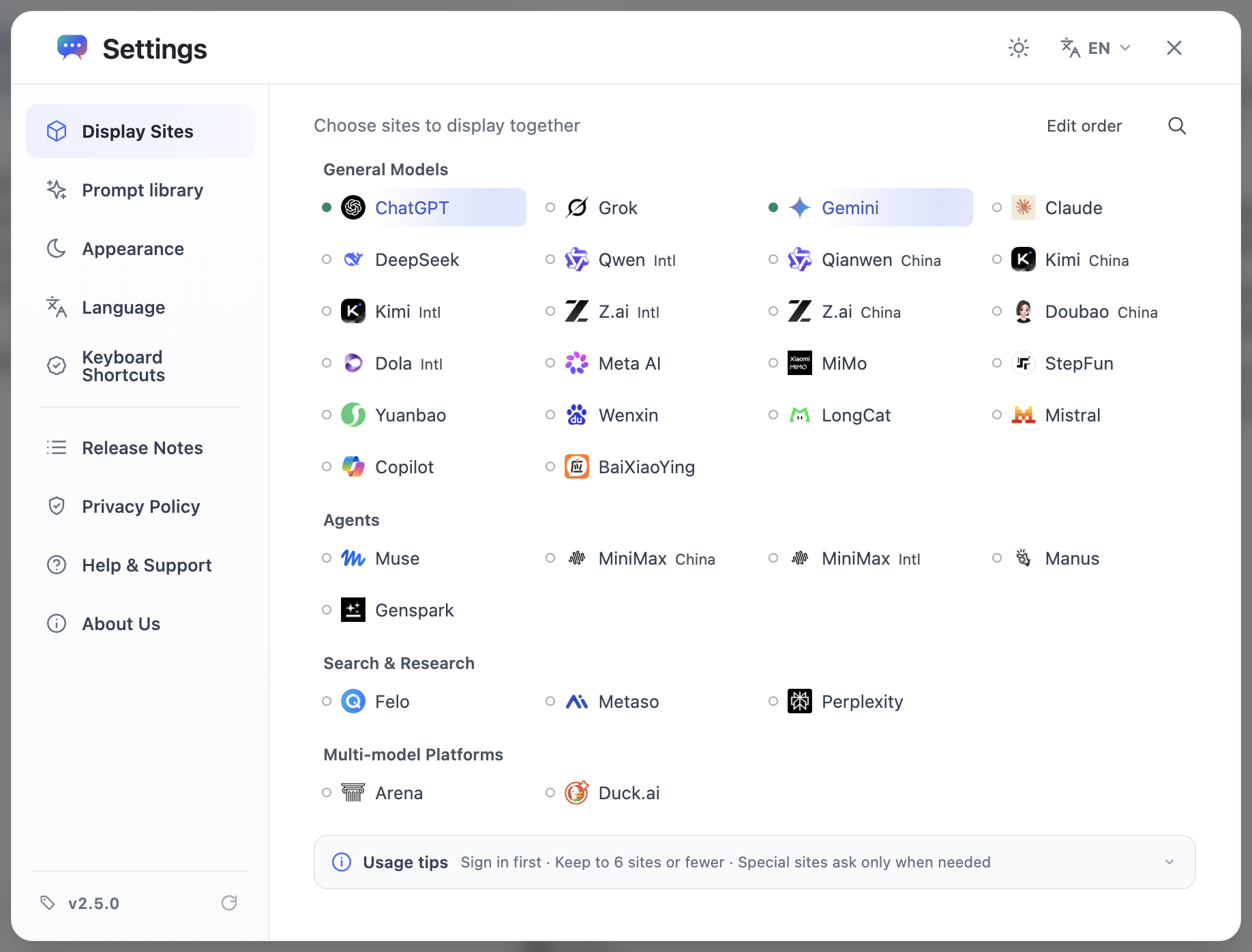
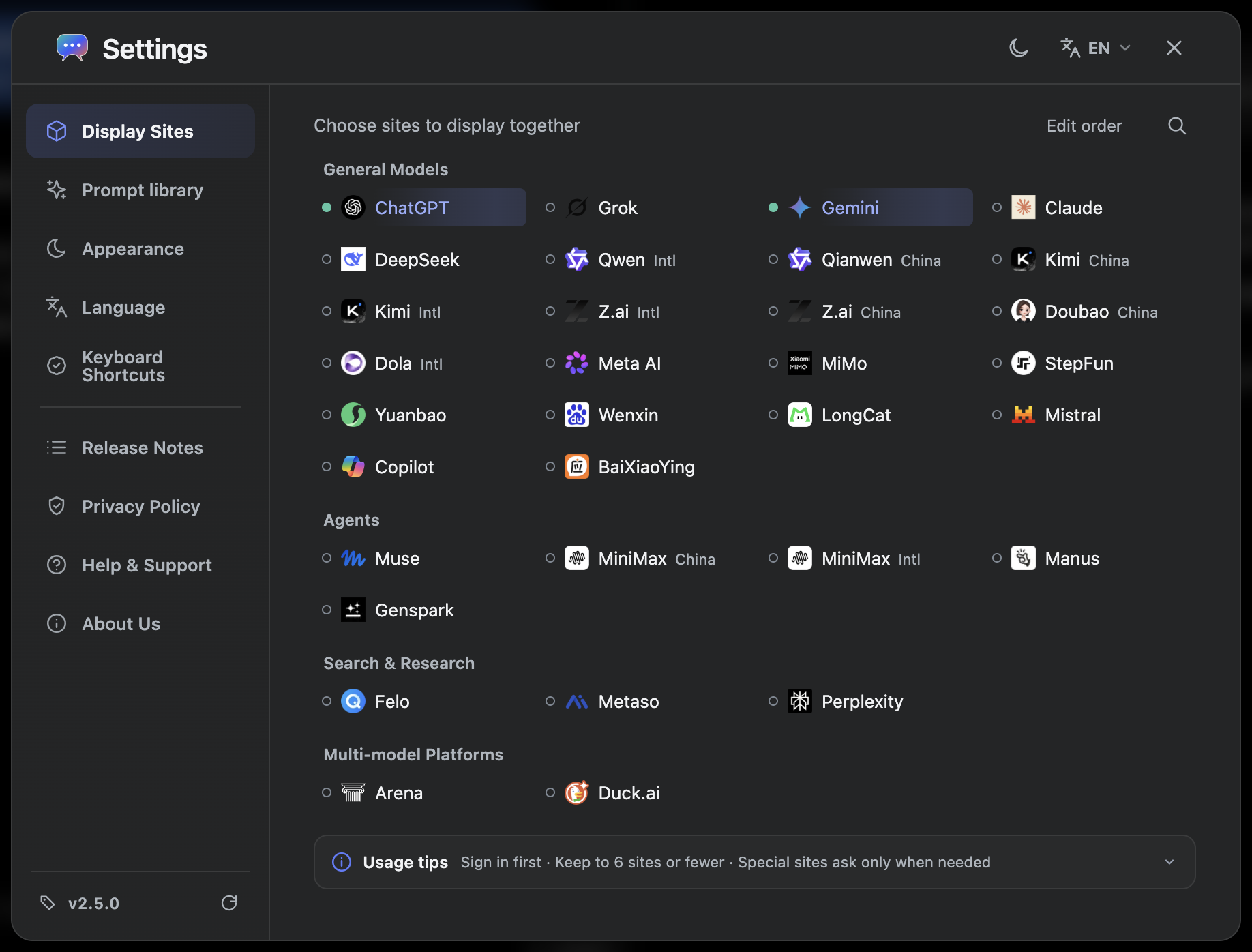
- Open the workspace, then open the site selection settings. Start with two or three AIs so you can check each one.
- Wait for the sites to load. Sign in through the relevant provider when required, then return to the shared input.
Send your first question
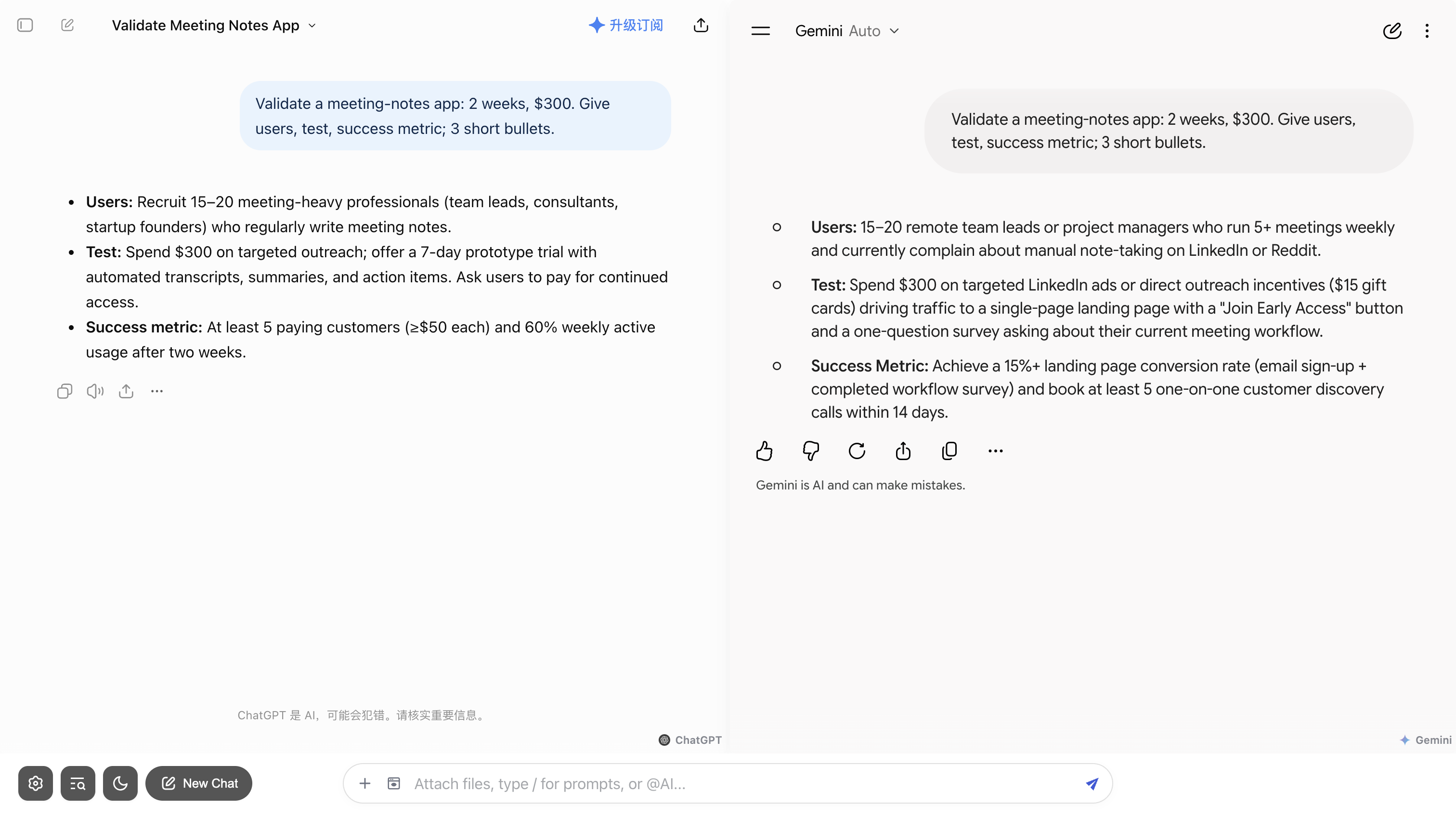
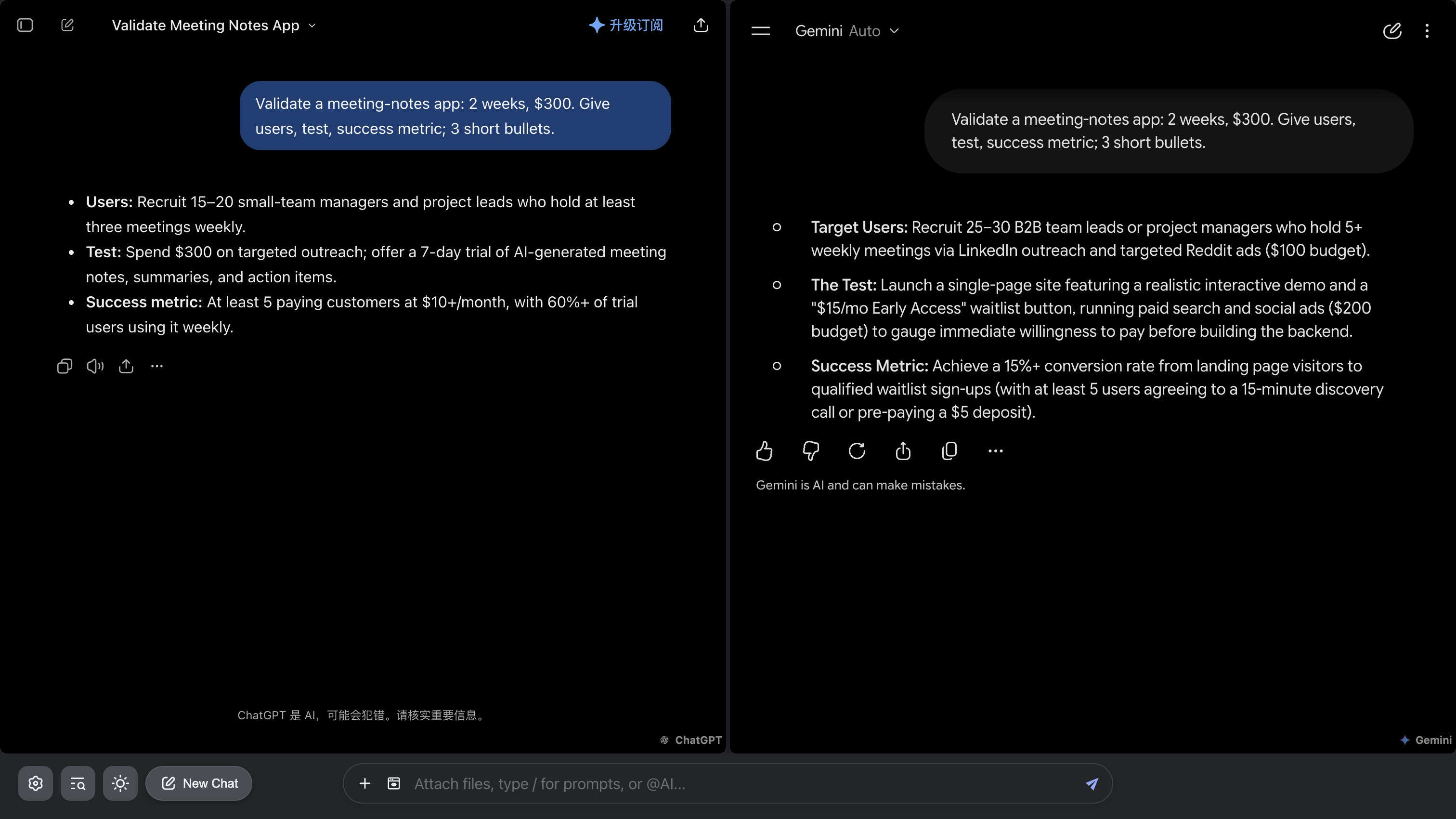
- Write a specific question in the shared input at the bottom. Without an @ target, it is sent to the sites currently enabled in your workspace.
- Check each site to see whether it received the question and started responding. Response times can differ.
- To follow up with one AI, type @, select its name, and add your next question.
Input and keyboard controls
| Action | Control |
|---|---|
| Send | With the picker closed, use Enter; input-method confirmation does not send |
| New line | Shift + Enter with the picker closed |
| Choose an @ target or prompt | When candidates are present, use ↑ / ↓ and Enter; Esc closes the picker |
| Insert a prompt | Type / in an empty input or after a space, or type a configured /shortcut |
Continue from here
Get a few sites working first, then add more sites, files, and tools. If something fails, isolate the affected site before changing the entire setup.