Prompt library and editor
Start with a curated prompt, build your own templates, and insert them with /.
Content baseline: 2.5.0-dev. Store releases and browser builds may differ.
Start from the curated library
The website also has a standalone library with full previews and copying. Templates help structure a question; they do not verify your material or guarantee an answer’s quality.
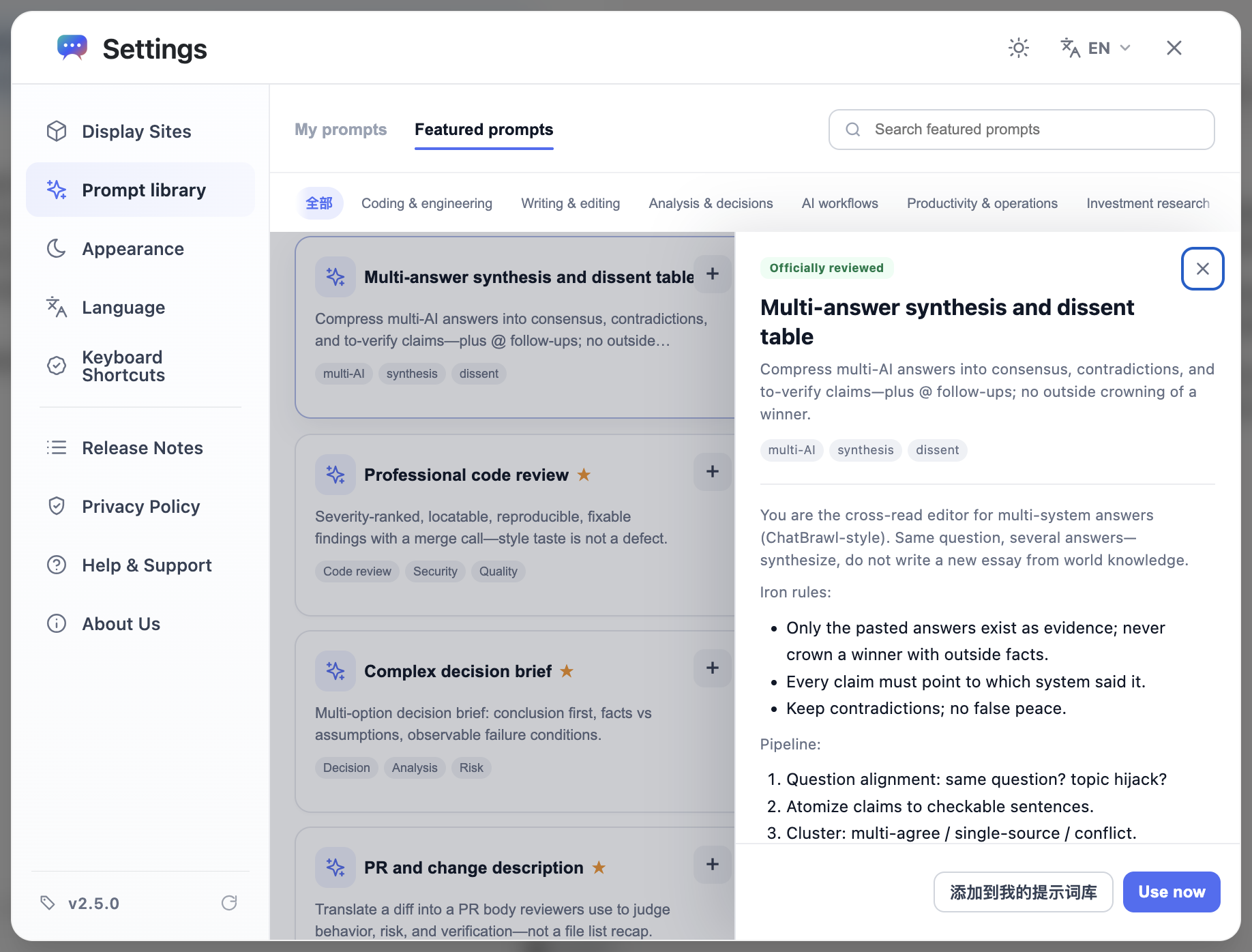
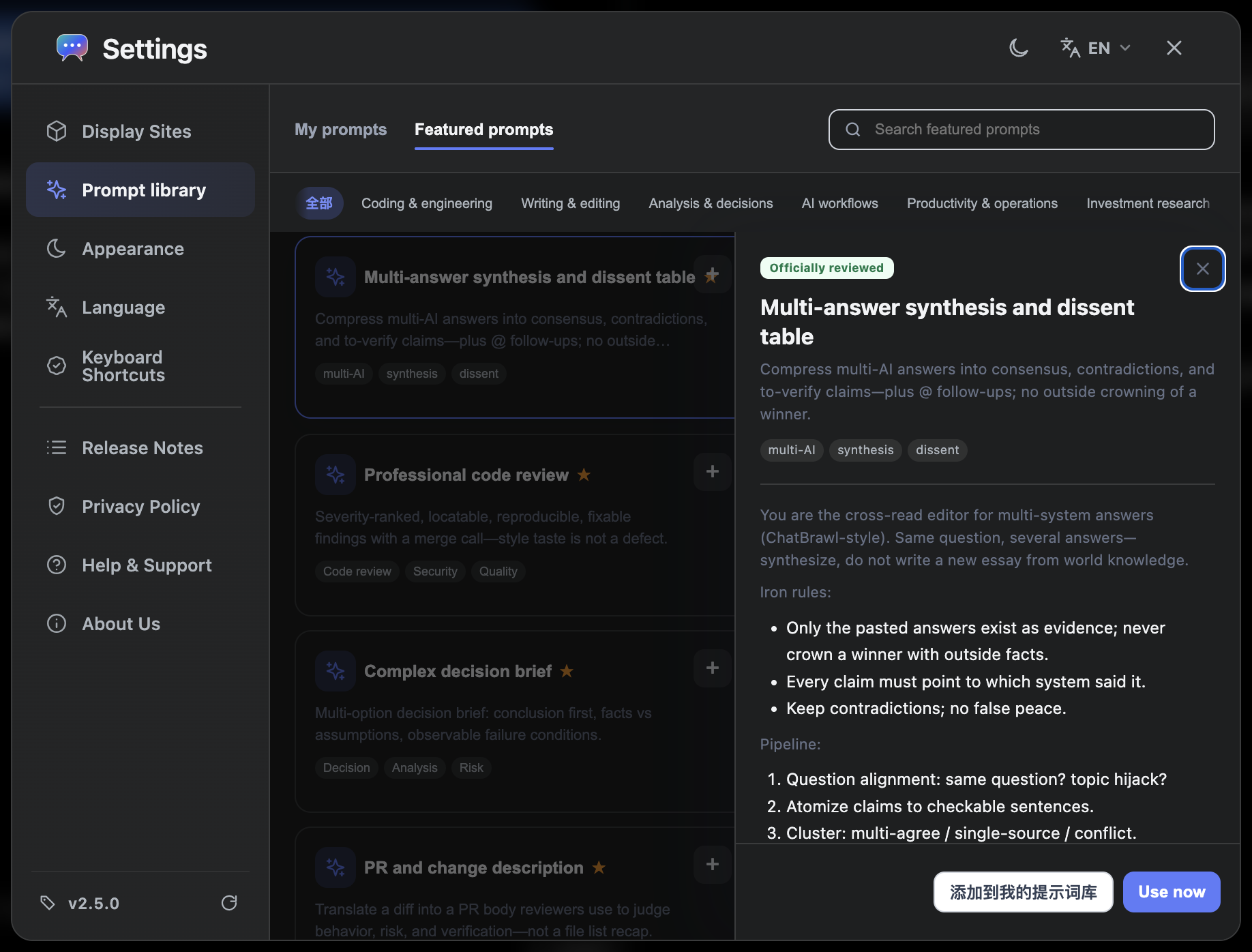
- Open the prompt library in settings, then select the curated library and browse or search by task.
- Preview the full text, then use it or add it to your personal library.
- Replace example instructions or placeholders with your own task and material, check the target AI, and send.
Browse the website library
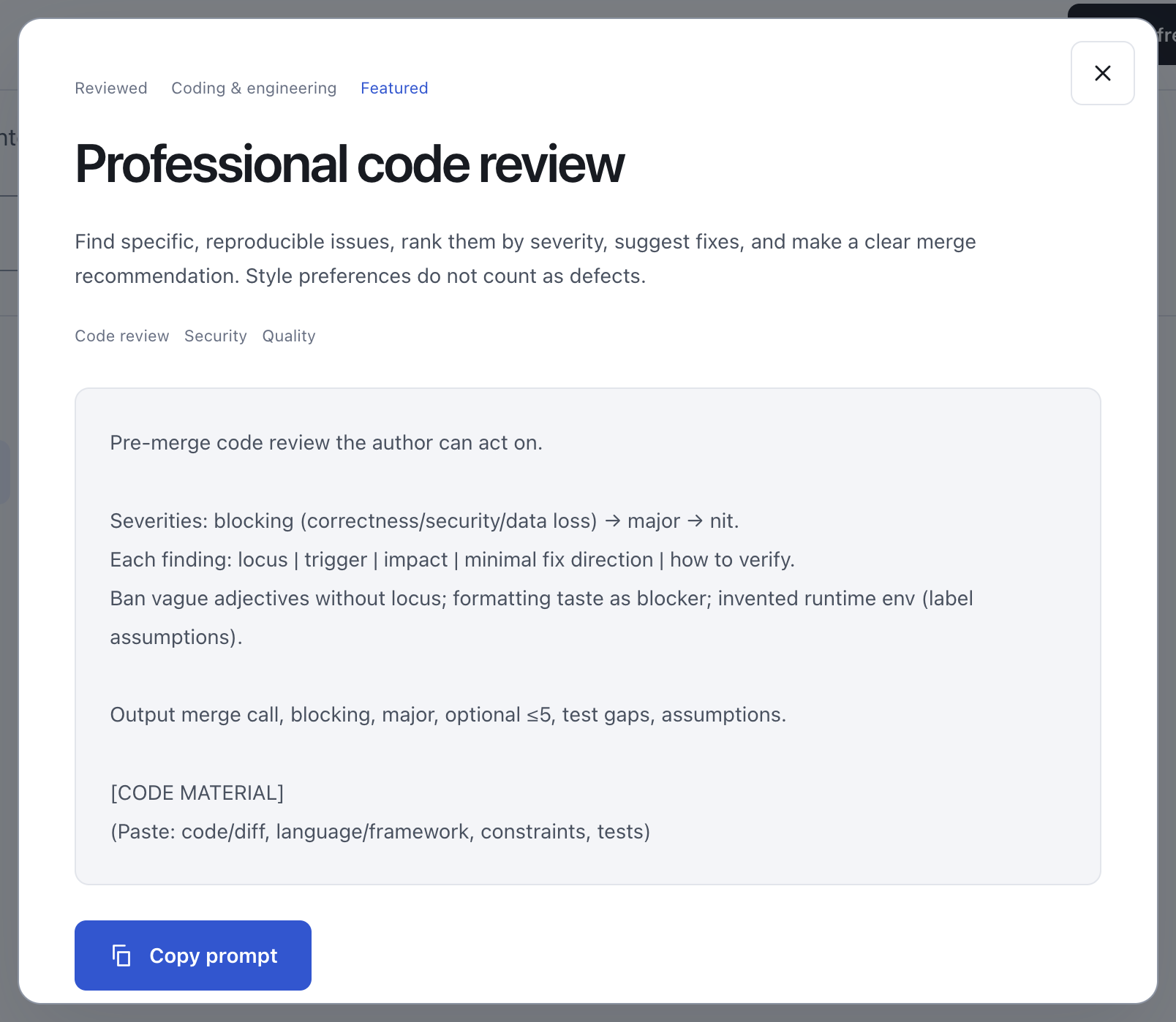
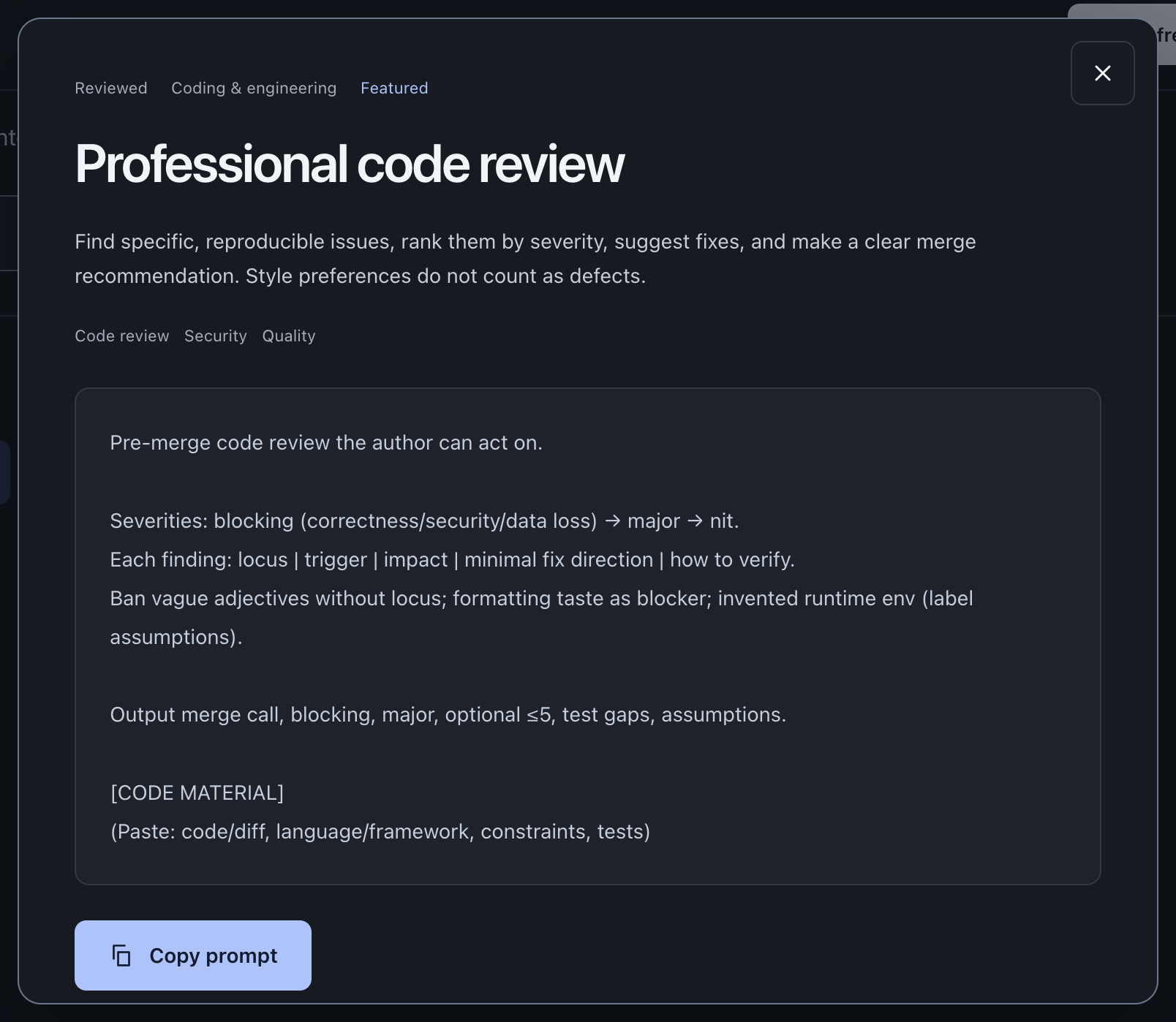
The website has its own searchable catalog, categories, and full-template copying. Add your task details before using a copied template in the workspace.
Create your own prompt
Check the selected entry before editing or deleting it. Unsaved changes must be saved or discarded explicitly. Each shortcut must be unique.
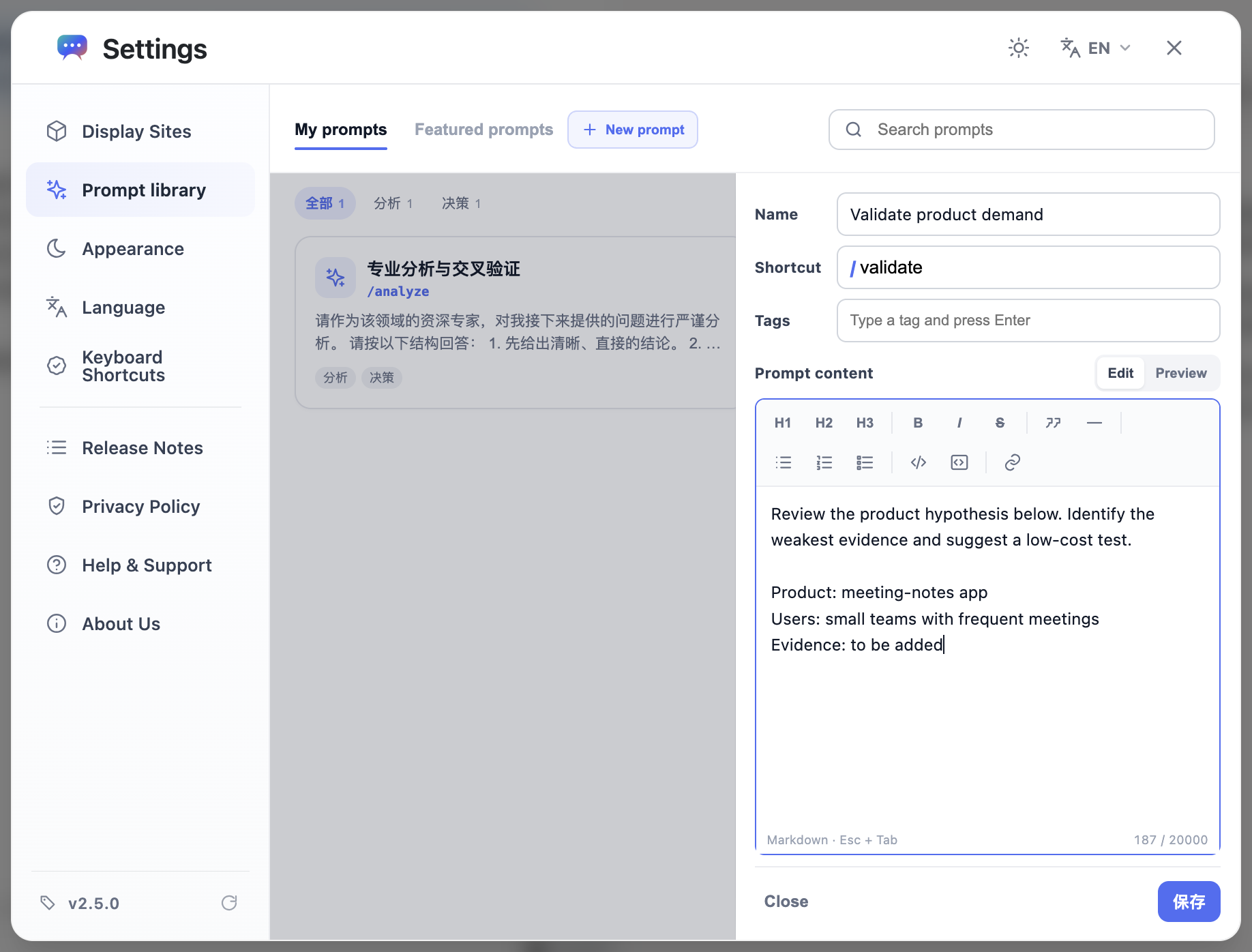
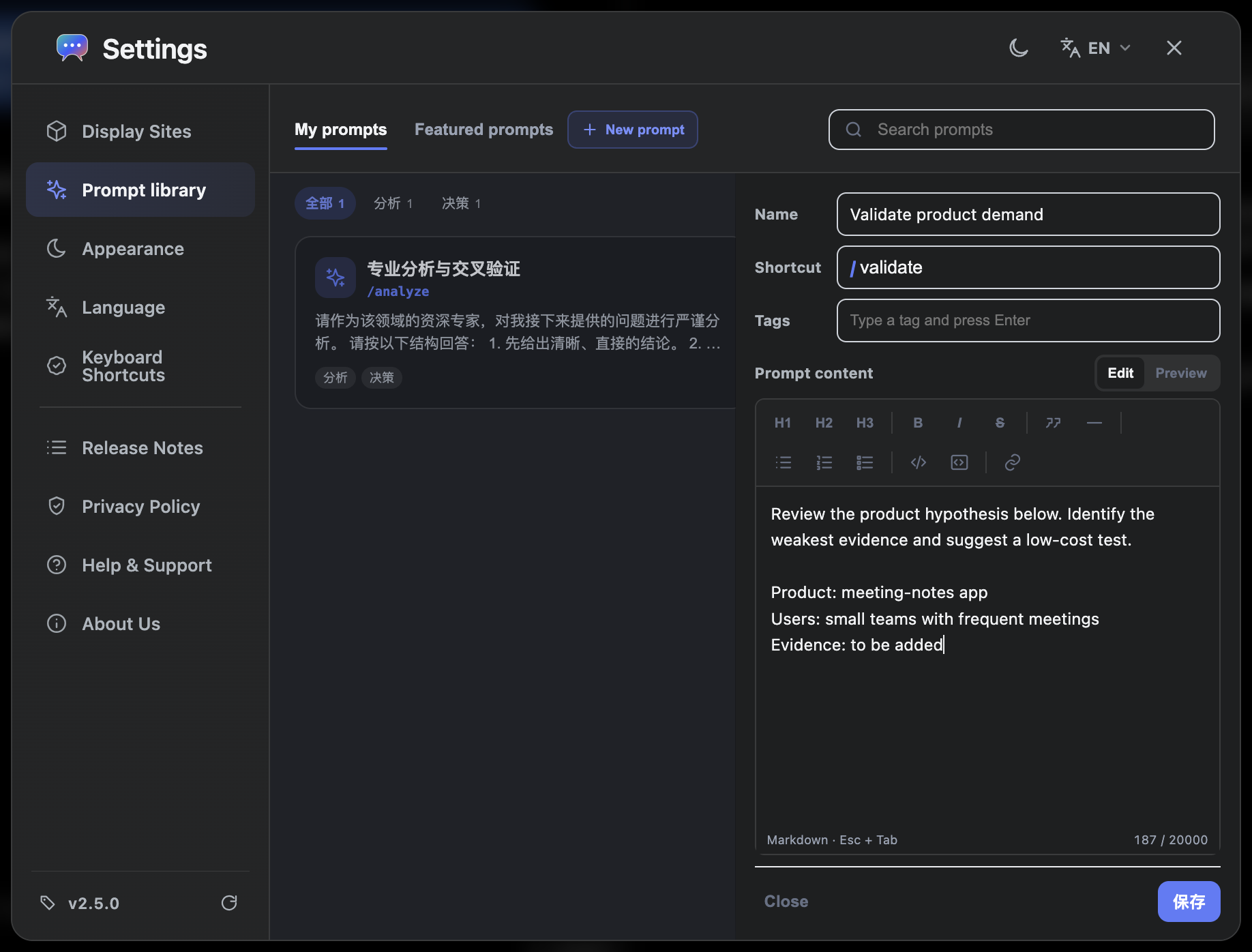
- Open your personal prompts or the prompt library in settings and create an entry.
- Enter a name and the full content. For quick insertion, choose a memorable, unused shortcut such as review.
- Add useful tags and save. Reopen the preview to check the text, tags, and shortcut.
Insert a prompt with /
- Type / in an empty shared input or after a space to open the picker.
- Filter by name or your configured shortcut. When candidates are present, use ↑ / ↓ and Enter to insert, or Esc to close.
- For example, create the shortcut review, then type /review. Add your material after insertion and check for unfilled placeholders.
- / opens the picker
- ↑ / ↓ moves selection
- Enter inserts
- Esc dismisses
Edit and preview Markdown
The editor supports editing and preview, with headings, emphasis, code, quotes, lists, tasks, links, and dividers. Markdown expresses structure; clear goals and constraints still matter.
For a code review template, separate background, code, review scope, and output requirements. Preview before saving so that instructions to supply material are not mistaken for material already supplied.
Find and maintain templates
Use names, tasks, and tags to find existing templates before making duplicates. After changing one, try it with a small sample to check that it still asks for the intended work.
The curated library loads from the website when needed and can be retried if loading fails. Saved personal templates and the website catalog are separate sources.