Workspace and shortcuts
Choose and arrange sites, expand a pane, and configure the interface for your work.
Content baseline: 2.5.0-dev. Store releases and browser builds may differ.
Choose and arrange sites
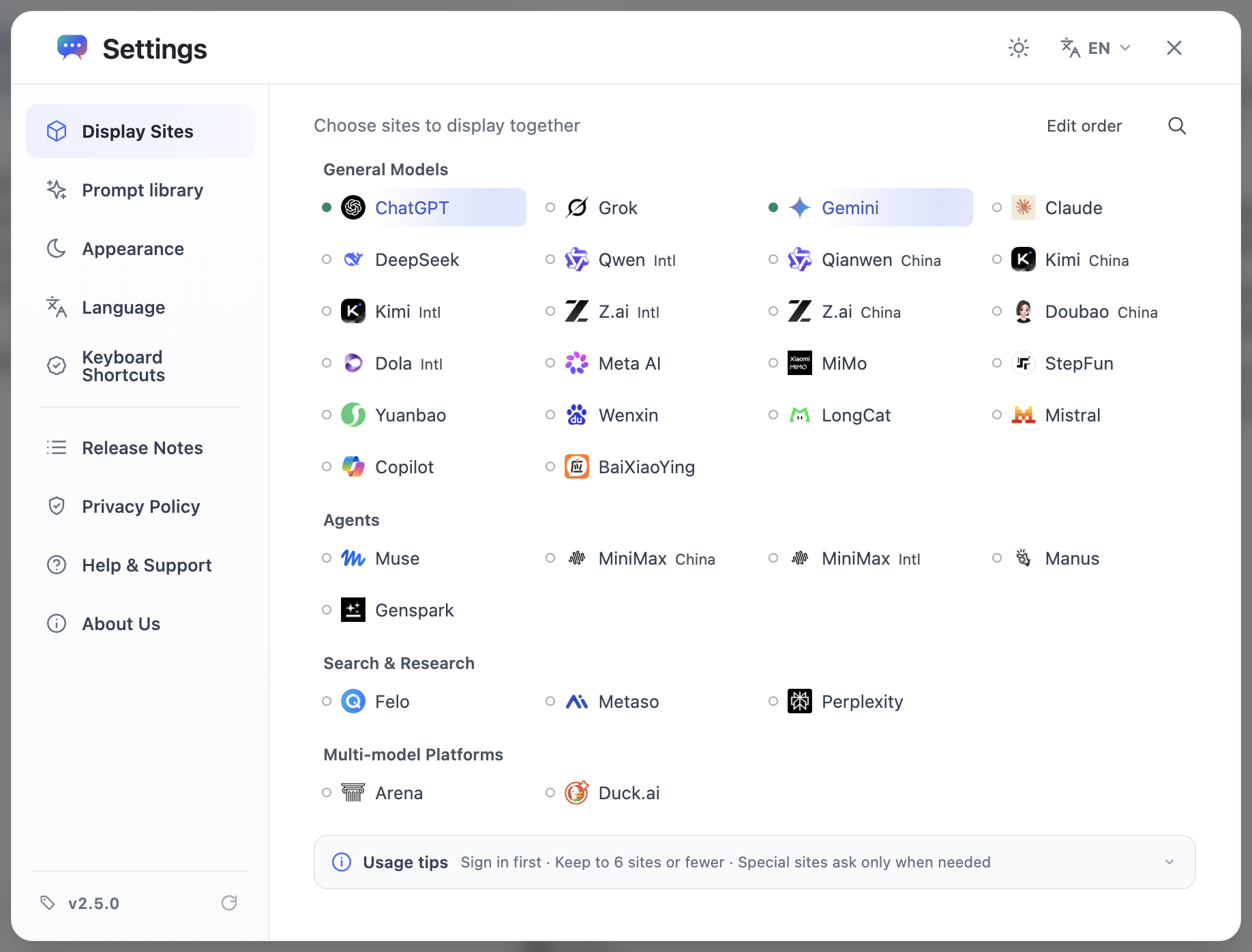
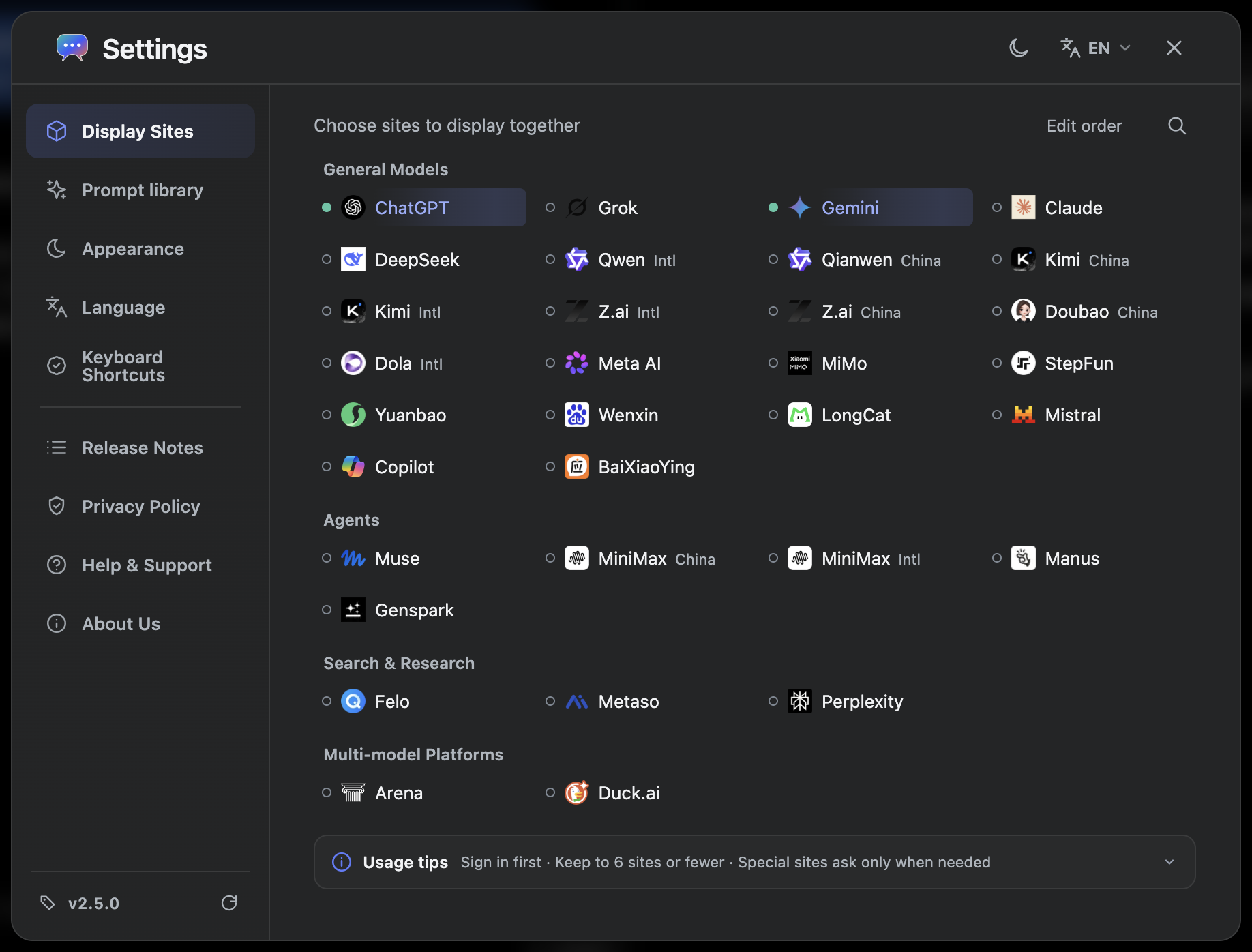
Site selection in settings controls which AIs are enabled. Search by site or organization name, edit the order within a category, and confirm changes.
Workspace panes also have ordering handles. Drag a handle, or focus it and use Alt + an arrow key. If saving fails and the order is restored, read the message before retrying.
Adjust the number of columns
More sites can require more page loading and signed-in resources. Start with a few frequently used sites and add more for the task.
- Open appearance settings and change the maximum number of panes per row.
- Return to the workspace and check the input, site labels, and readable width of each pane.
- For a long answer, reduce the number of visible sites or expand one AI.
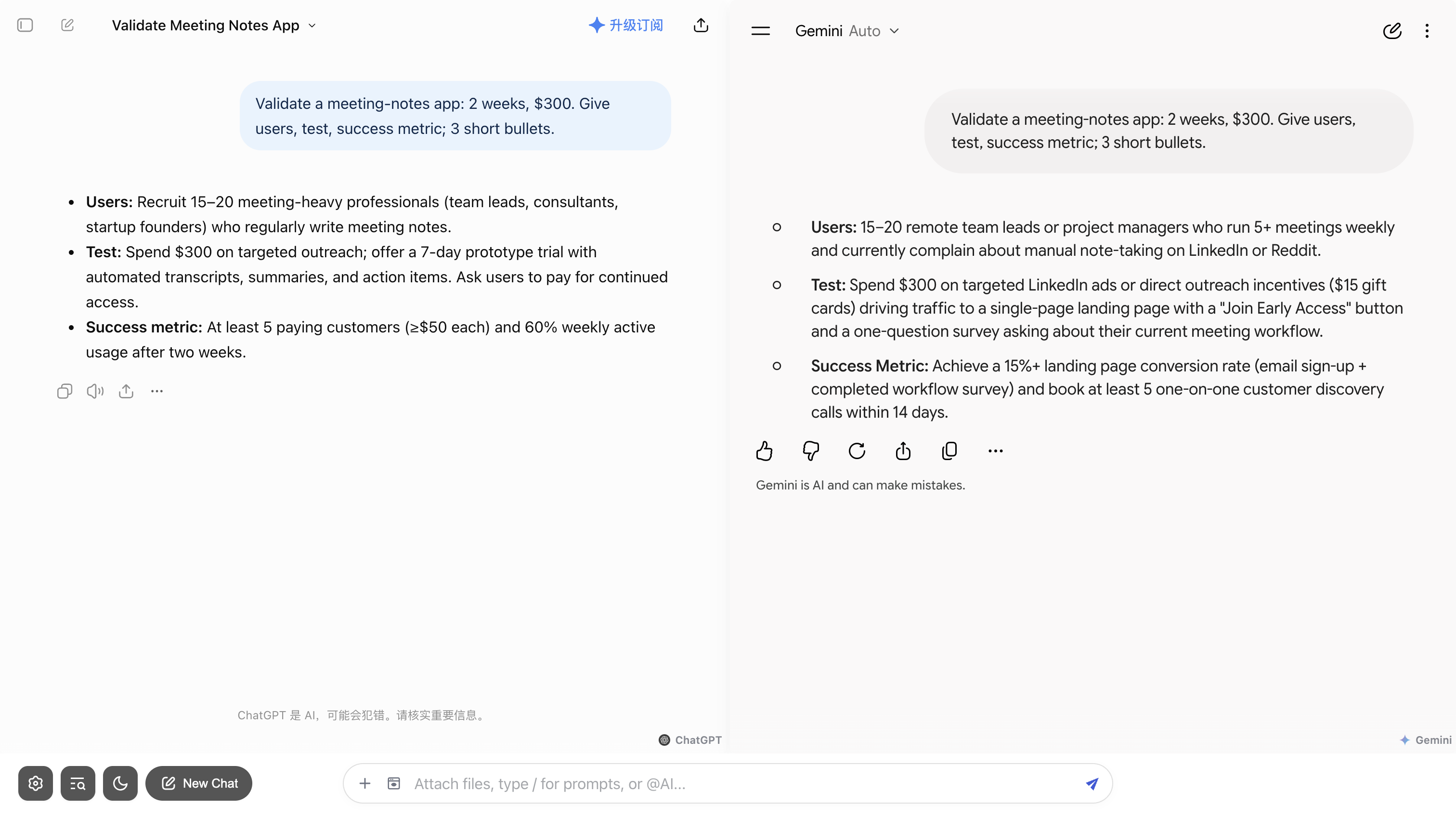
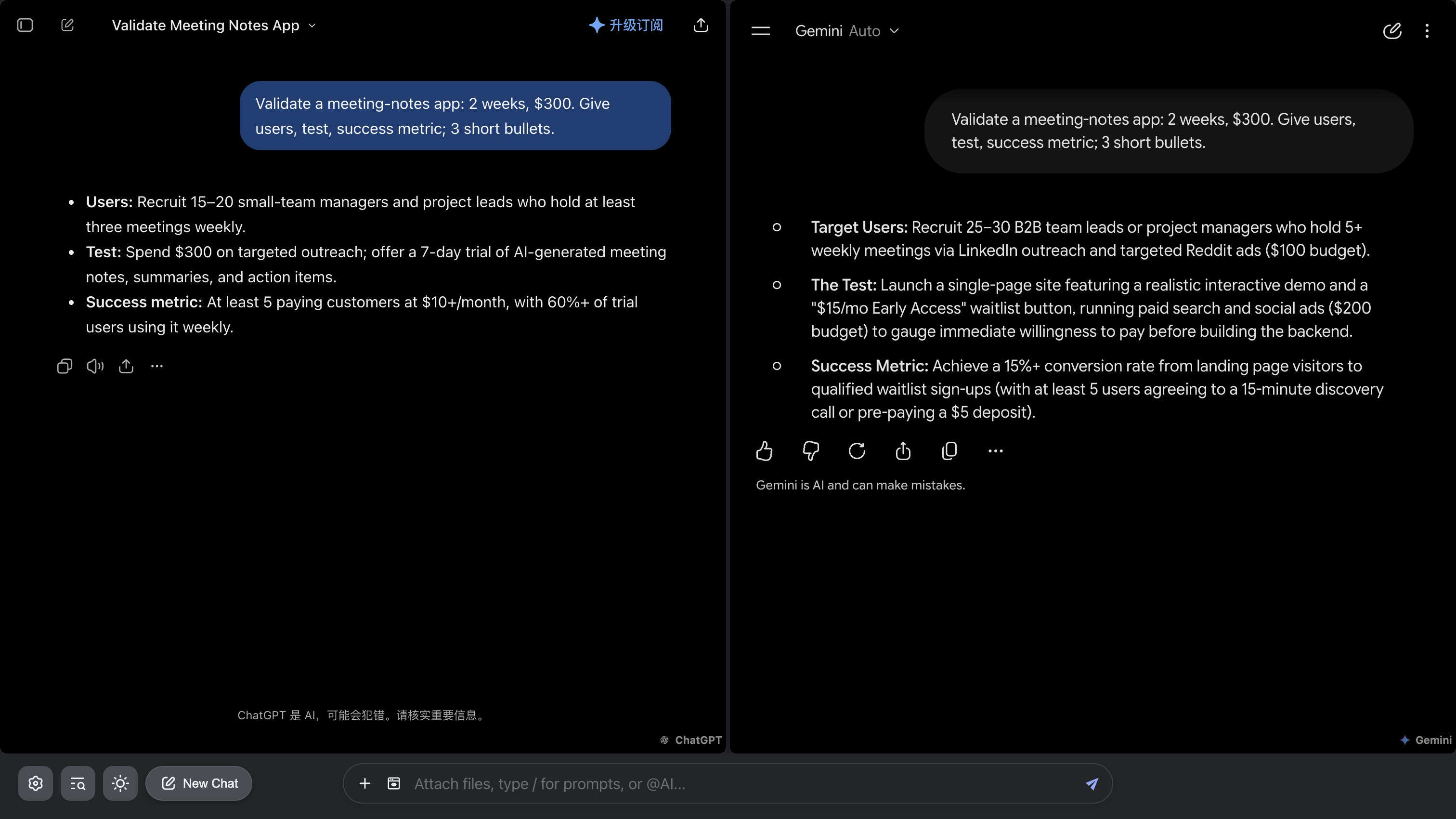
Expand an AI for reading
Expanding changes the reading layout; it does not share that AI’s context with the other sites.
- Use a pane’s expand action to focus on that AI’s answer.
- Use Restore or press Esc to return to the multi-site layout.
- Restore the layout before rearranging panes.
Theme, labels, and original controls
Appearance settings control the workspace theme, site labels and placement, and whether original sidebars or input controls are hidden. Show original controls when you need a provider-specific action.
The workspace theme and the original sites have different control scopes. Adapter support and account settings can cause their appearance to differ.
Configure a browser shortcut
- Open keyboard shortcuts from settings to reach the browser’s extension shortcut page.
- Find ChatBrawl and assign an unused combination. Command + Shift + K on macOS or Ctrl + Shift + K on Windows are possible examples.
- Return to the extension to check the setting, then try opening it from another page.
Find and open quick controls
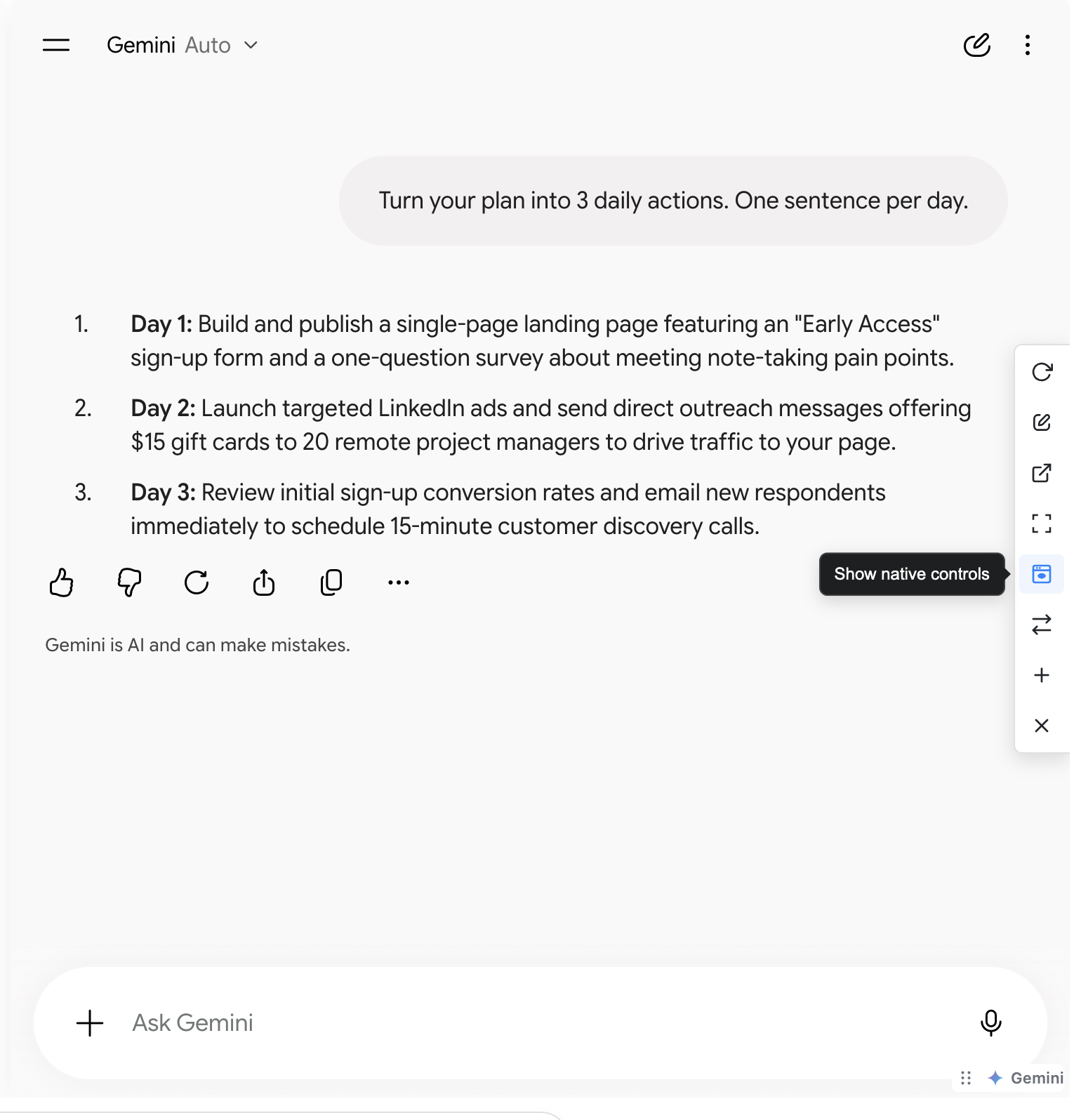
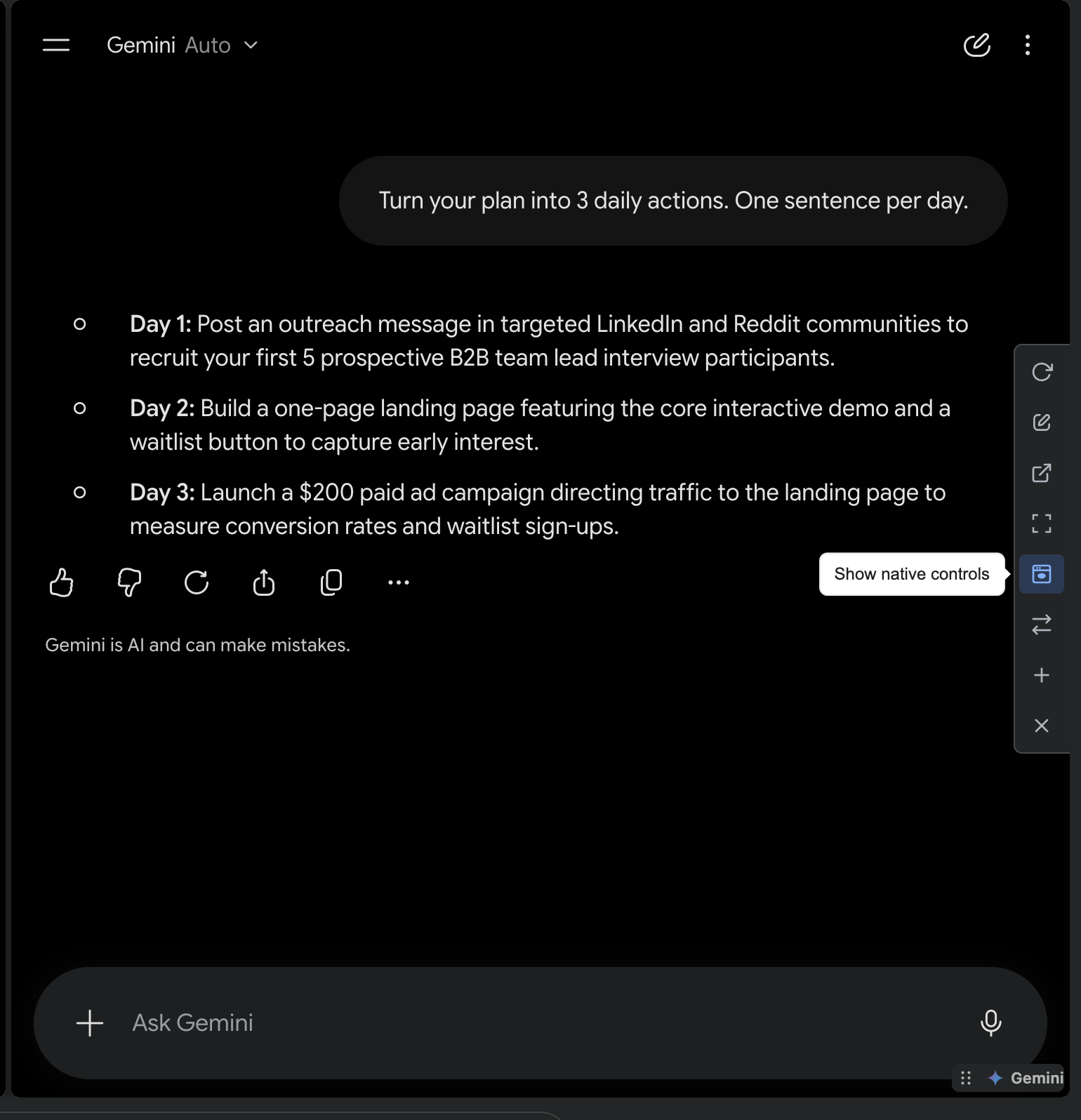
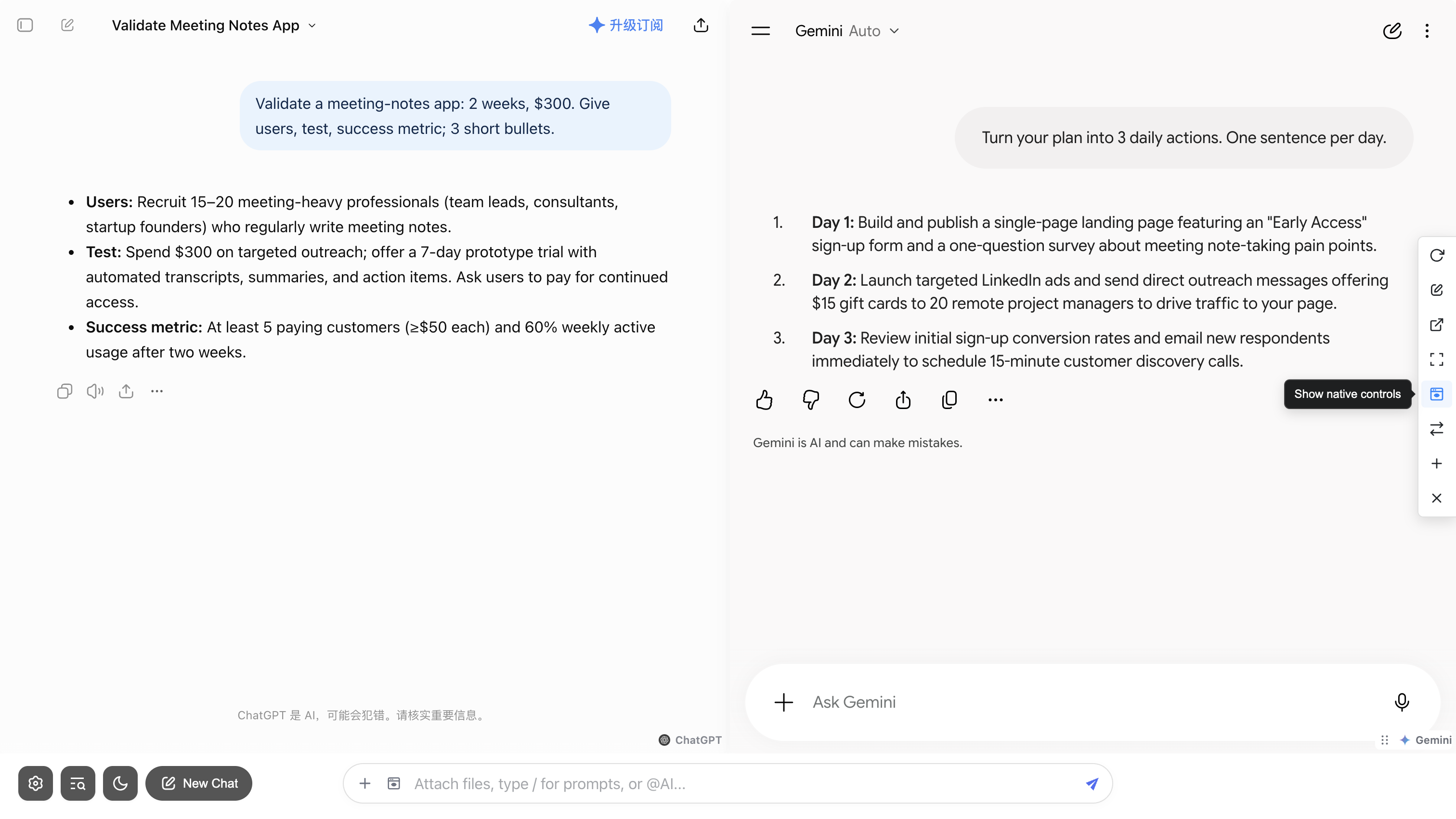
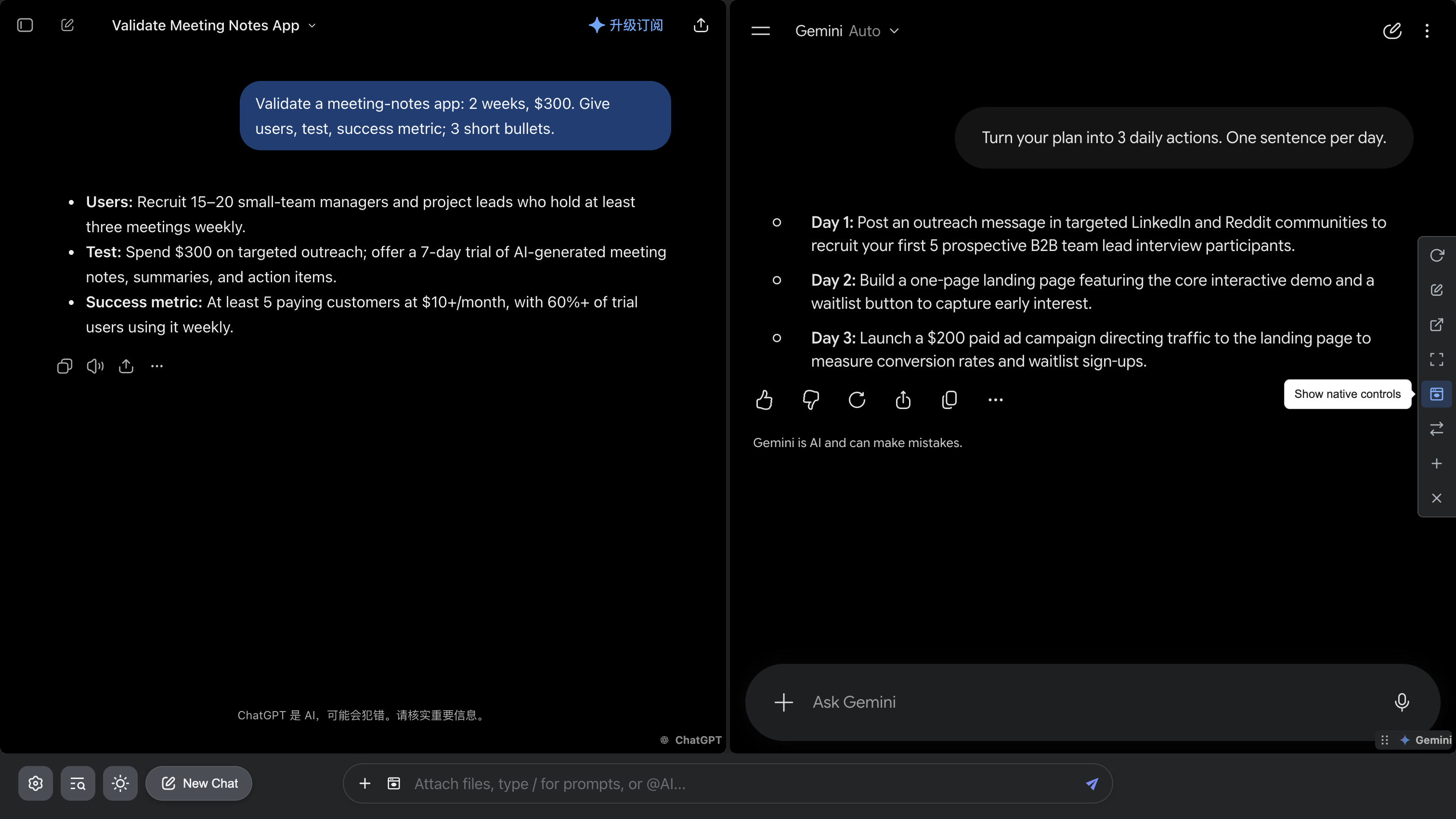
Inside the ChatBrawl workspace, each AI pane has a four-dot icon on its right edge. Hover over the icon to reveal the controls.
Actions for the current pane
You can also refresh the page, open the original site, add another conversation, or close a pane. Check the site label before acting.
- New chat: start a conversation on the current site, rather than resetting every pane.
- Show original controls: reveal the site’s own controls inside the pane. Open on the original site is a separate action that opens another page.
- Switch sites: choose a different AI for the current pane. The previous site’s conversation context is not transferred.