Send, target, and quote
Choose who receives a question, keep contexts clear, and bring a passage into your next prompt.
Content baseline: 2.5.0-dev. Store releases and browser builds may differ.
Send from the shared input
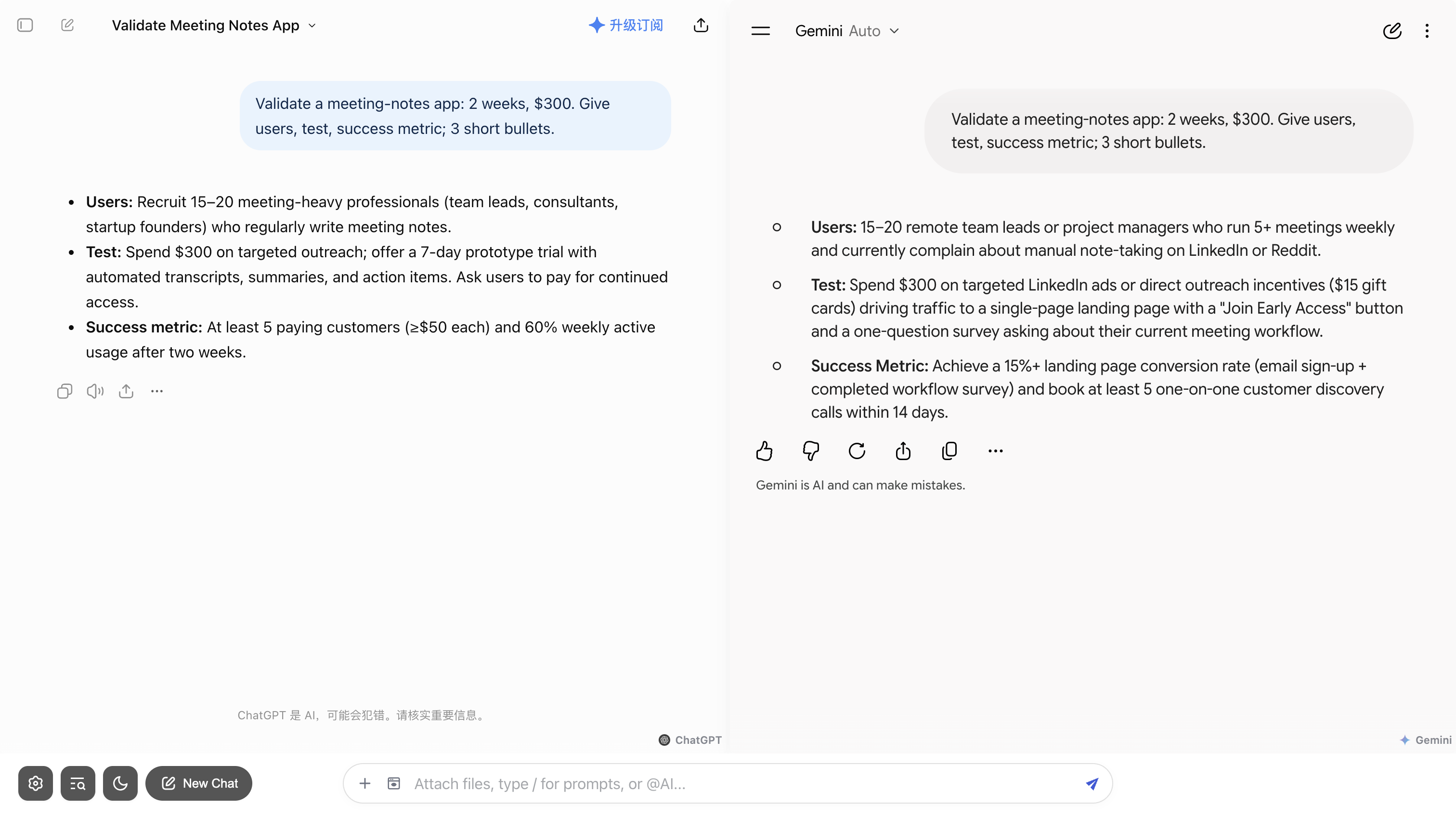
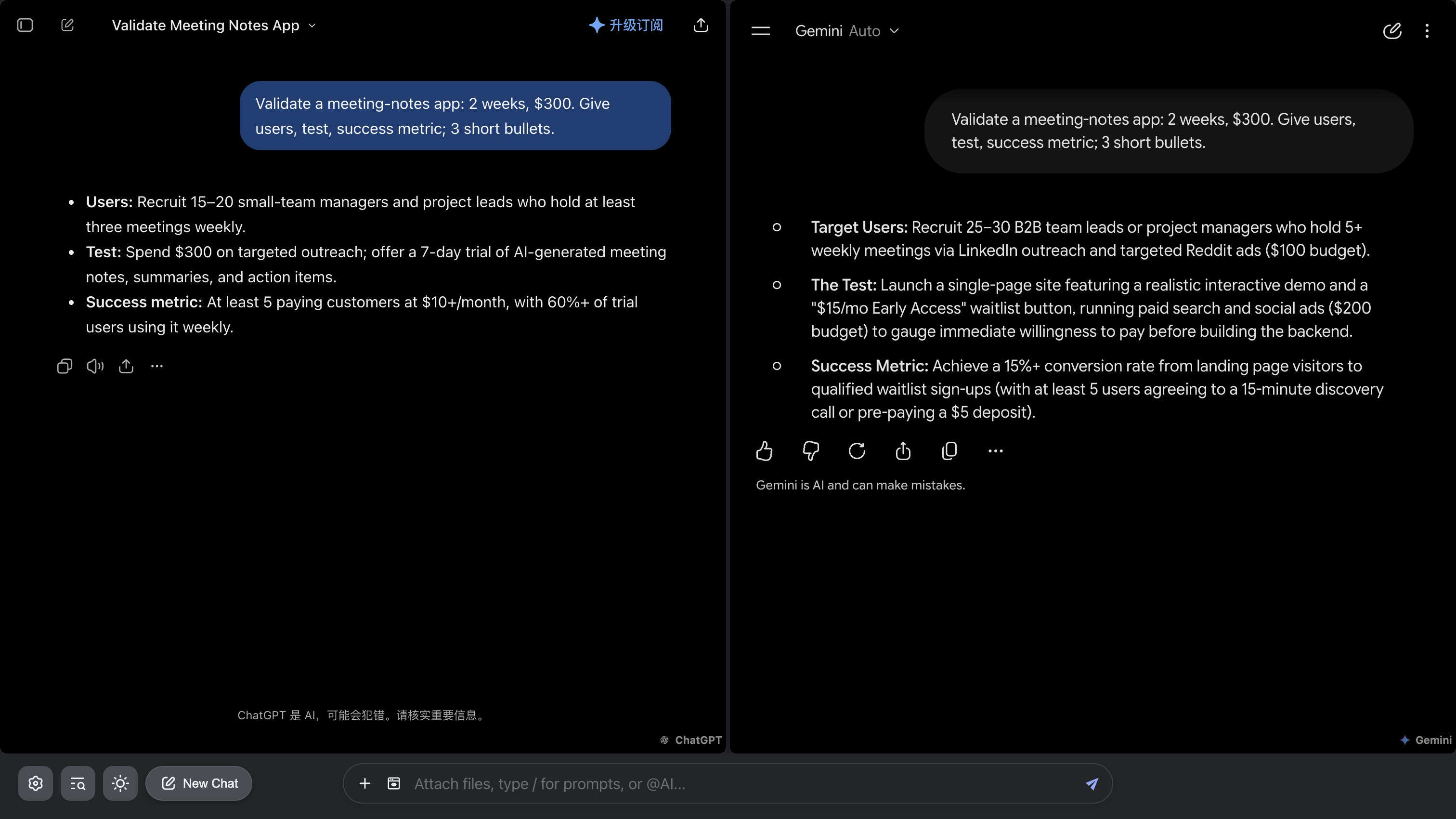
Each selected site handles the question separately. Answers appear side by side; you still need to verify key claims.
- Make sure the intended AIs are enabled and ready to chat.
- Write your question in the shared input. Check for @ targets, files, or quotes left from a previous draft.
- After sending, check reception and response status on each site. Processing speed and quota limits are independent.
Target an AI with @
- Type @ in the shared input to open the available AI list.
- Press a displayed number (1–9) to select quickly, or use the arrow keys and Enter. You can also type a name to filter or click a result.
- Check the target chip, then write and send your follow-up. Add more @ targets if you want several recipients.
- Remove unwanted target chips before sending.


Keep each conversation context clear
Each AI uses its own conversation on its original site. A follow-up to A continues A’s context; B and C do not automatically receive A’s full answer.
To ask another AI to examine an answer, include the relevant passage and necessary context explicitly. For long material, check the receiving site’s context and attachment limits.
Quote a passage
- Select text in an AI answer, then click the Quote button that appears to bring the passage into the shared input.
- Check its source on the quote card and open the preview to review the full passage. Add a specific task.
- Choose the receiving AI and send. Removing the quote card only removes it from this draft; it does not delete the original answer.
- Quote cards support keyboard focus. Esc dismisses the preview.
Queues, cancellation, and failures
Messages queue separately for each AI site. Each site has its own readiness and response state; one waiting site does not mean every site failed.
- In the affected AI pane, expand the queued-message count to inspect messages that have not been sent.
- Cancel a queued item to remove that pending task for that site. This does not recall a message already sent.
- If a task fails or its status is unknown, check whether the original site received it before choosing Retry (重试) or Skip (跳过). These actions affect that site only.
New chats and repeated actions
The main toolbar can start a new conversation; a pane’s own toolbar also provides actions scoped to that site. Check the scope before acting.
When sending repeatedly, uploading, or changing tools, wait for the relevant status before retrying. If one site fails, inspect that site before resending to every AI.